Most small business owners I talk to in the San Gabriel Valley have Google Analytics on their website. Most of them also have a Google Business Profile. Up until recently, those two things didn’t talk to each other.
That changed. Google quietly published documentation for a native link between the two, and it’s one of the more useful things they’ve rolled out this year.
What this actually shows you
Once you link your Google Business Profile to Google Analytics, a new section shows up in your reports with seven metrics:
- Interactions (total actions taken on your profile)
- Website clicks (people who clicked through to your site from your GBP)
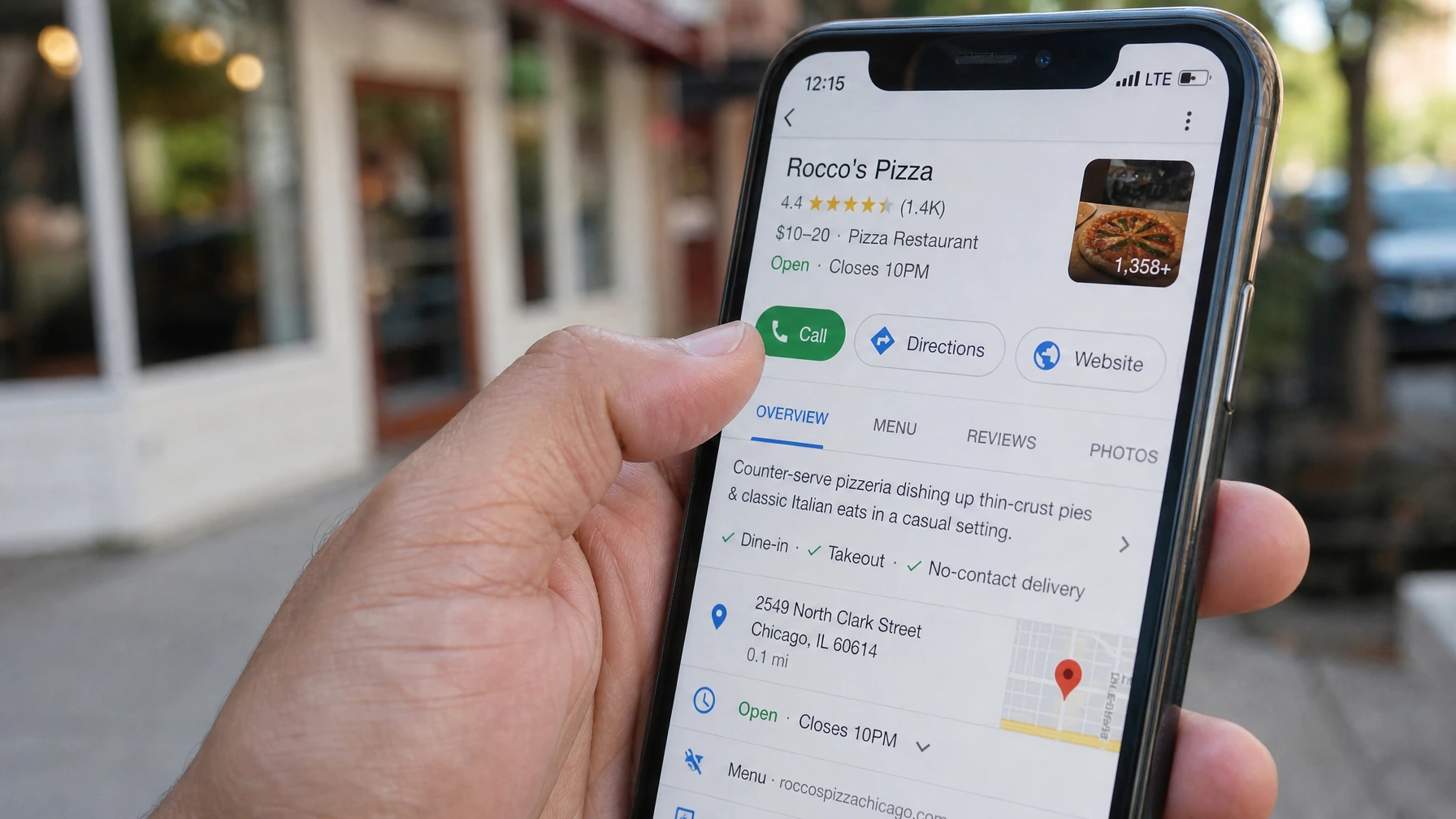
- Calls (people who tapped the call button on your profile)
- Directions (people who asked Google Maps to route them to you)
- Messages (if you have messaging turned on)
- Bookings (if you use a booking integration)
- Menus (for restaurants with a menu link)
For most small businesses, calls and directions are the two numbers you actually care about. Before this, those actions were invisible to Analytics. The only GBP data GA could see was website clicks, and only if you had UTM tags on your profile links. Most people don’t.
This fills in the gap.
How to set it up
It takes about 3 minutes. You need Editor access on your GA property.
- Open Google Analytics and go to your property.
- In the left sidebar, click Admin (the gear icon at the bottom).
- Under the Property column, look for Product links.
- Click Google Business Profile links.
- Click Link and follow the prompts to connect your GBP account.
That’s it. The data starts flowing and shows up in your Reports under a new Google Business Profile section.
A few things to know before you get excited
I want to be straight with you on the limitations, because Google’s rollout material glosses over them.
Not all accounts have this yet. It’s still rolling out. If you don’t see “Google Business Profile links” under Product links, check back in a few weeks.
Multiple locations get merged. If you have more than one location on your Business Profile, Analytics combines the numbers into one total. You can’t break it out by individual location. For a single-location business in West Covina, this doesn’t matter at all. For a business with three storefronts, it’s a real limitation.
You only get six months of data. Analytics won’t show anything older, even if you set the date range further back. This is a snapshot tool, not a long-term archive.
You can’t use this data in Explorations. If you’re used to building custom reports in the Explore section of GA, this data won’t show up there. It lives in its own section and that’s it for now.
For the majority of small businesses with one location, none of those limits matter much. You’re getting call and direction data you didn’t have before. That’s the win.
What to actually do with the numbers
Here’s the question worth asking once you have the data: when are people calling you?
Most GBP dashboards show you a weekly summary. GA gives you a date-ranged view, so you can spot patterns. If calls spike on Fridays, that tells you something. If direction requests go up when you run a promotion, you can see that too.
The other thing to check: the ratio of profile visits to calls. If a lot of people are landing on your Business Profile but almost no one is calling, that’s a sign something on the profile is turning them off. Missing hours, no reviews, outdated photos.
The data doesn’t fix anything on its own. But it points at things worth fixing.
Do you need paid Google Business Profile analytics tools?
Once people start looking into this, they usually find a pile of third-party GBP analytics tools: dashboards, rank trackers, and “insights platforms” that mostly run $20 to $100 a month. Here’s my honest take for a single-location small business: you probably don’t need any of them.
Between three free things, you already have more data than most owners will ever act on:
- The Performance tab inside Google Business Profile itself. Calls, messages, direction requests, and the searches people used to find you. Free, already turned on, and most owners have never opened it.
- Google Analytics, with the product link described above. This is the one that lets you put profile activity on the same timeline as website activity, so you can see whether a promotion moved anything.
- Google Search Console. Free, and it tells you which queries you appear for and where you sit. Nothing paid replaces it.
A paid tool starts earning its place when you have several locations to compare, or when you genuinely need rank tracking across a grid of neighbourhoods rather than a single average position. If you have one location and you are trying to answer “is this working,” you already have the answer for free. You just have to go look at it.
What to actually do with this
Pick one number and watch it for a month. For most local businesses it should be calls, because calls are the closest thing on the profile to revenue. If calls are flat while profile views climb, the problem is on the profile: the hours, the photos, the reviews, or the fact that nobody has responded to a review since 2023.
That is the whole loop. Look at the number, change one thing, look again in a month.
If you’d rather hand it over, Google Business Profile management is a fixed-price job and often a one-time cleanup rather than anything ongoing. The wider local SEO work covers the rest of it. And if the reviews are the weak link, how to ask customers for Google reviews is the process I use.